
Vertical: Dental
PMS Eligible: Praktika
Healthengine's Praktika integration syncs with your V2 or V1 setup, allowing you to manage appointments efficiently and display availability online.
If you're not set up with Praktika, you’ll need to use one of our non-integrated solutions, which you can read more about here. For practices using the V2/V1 setup, below you'll find a complete overview of the integration and its benefits.
Benefits of the Integration for Your Practice?
- We connect to your Praktika software via API, meaning we do not require access to any server computers, and there is no software to install. This eliminates issues that can arise from hardware or server connections.
- The integration will automatically insert booked appointments into your Praktika diary.
Integration Publishing Limit
The default that your integration will publish is 30 days.
The maximum number of days the integration can publish in advance is 90 days.
Please reach out to our support team using the contact details at the bottom of this article to extend the publishing days.
How Does it Work?
There are two types of Praktika integration, known on Healthengine as V2 or V1. You can find a brief outline of the difference between the two below:
- V2: The V2 approach allows practitioner slots to be available for one or more specific appointment types, and bookings for these are made via rules being set against the practitioner or slots created in your Praktika diary if 'rules-based slot allocation' is not ticked in your Praktika online booking setup.
- V1: The V1 approach uses painted 'Healthengine' slots over existing availability schedules. With this approach, only one online booking type option can be painted over a practitioner, and we can only see practitioner availability that has been painted with the ‘Healthengine’ option.
Praktika V2 (Most Commonly Used)
The new version of Praktika is known on Healthengine as Praktika V2. This integration enables the use of the rules-based system in Praktika to define availability and has some additional integration requirements in comparison to the V1 version.
The V2 approach needs a new 'combined API key' to work properly.
Please note: Your existing V1 API key will still work, but might not pick up all multi-booking-system availability. If you were on V1 and have moved to V2 and the new rules-based system, please let our Support Team know so that we can update your API key to a new combined API key that accommodates V2 setups.
Setup Requirements
- Ensure Appointment types are enabled and set up to publish online (in Praktika) under Management -> Online Booking -> Appointment Types.
- Practitioners are enabled and set up in Management -> Practice Staff.
- If using Rules, these are set up under Management -> Online Booking -> Rules, and you have enabled rules under Management -> Online Booking -> General and ticking ‘Rule Based Slot Allocation (V2)’
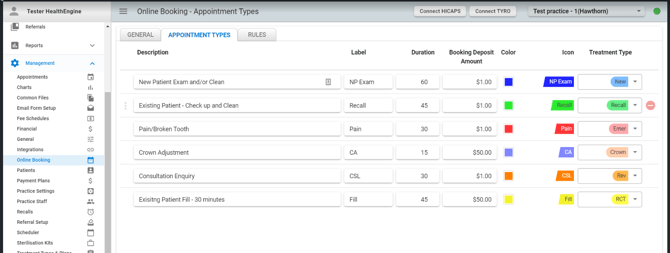
The screenshot below shows the appointment types tab in Praktika. This is where you can set what appointment types you offer, and we will sync those types through to your Healthengine portal.
They must then be linked to your Healthengine types in the Linked PMS Appointment drop-down (read more about this here) to allow us to insert booked appointments into your Praktika diary.
The next screenshot below shows how rules are set in Praktika - the green indicates a rule has been set, and the drop-down with the red outline shows that you will allow all your online booking types during those times.
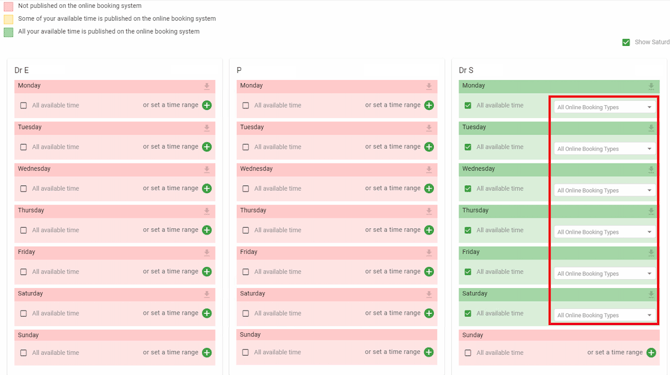
The rules can be set to specific times, or 'all available time', which would just be the practitioner's available time in the Praktika diary.
Further V2 Troubleshooting
Upcoming appointments are not publishing
Praktika has a minimum threshold for its online bookings. Please follow the instructions below in the event you need to change from their default of 1 hour.
- Select the Management tab at the top of the screen -> Practice Details.
- Down at the bottom of the screen Practice Details page, you will see the Custom Settings sections.
- Select Online Bookings and adjust the 'Booking minimum threshold' accordingly.
- Select Ok.
- Wait for a refreshed sync to pull through & publish.
Praktika V1
The original version of the Praktika integration involves painting your calendar with Healthengine availability. This is known as Praktika V1:
- In Praktika, choose Appointments from the menu on the left. Once you are in here, select the Scheduler option in the bottom right.
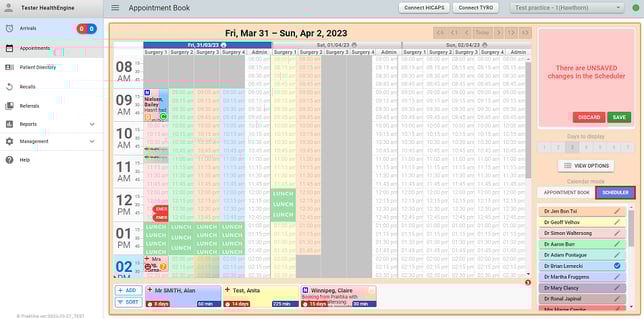
- Select the preferred practitioner by clicking their name below the availability menu. In this example, we are painting the blue slots for Dr Brian Lemecki into Surgery 4 on Friday, 31/03/2023.
Please Note: Existing practitioners must be assigned to a schedule prior to setting this up.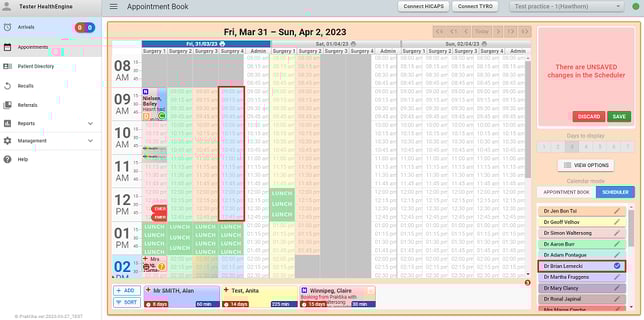
- Select Healthengine under the list of 'Functional areas' and create slots by clicking (optionally dragging) in the created availability for the practitioner.
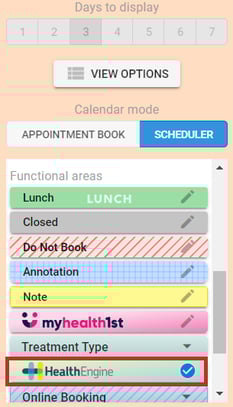
- Repeat creating slots for each appointment time you want published on Healthengine
- Each slot will be tagged with a Healthengine logo
- Each slot maps to an appointment availability on Healthengine
- If you make them longer or shorter, they will still only be one appointment on Healthengine.
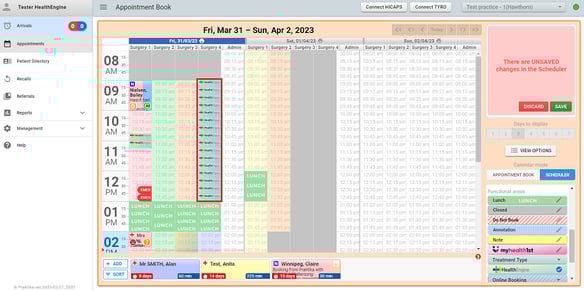
- Save the availability and propagate for however many weeks ahead is desired.
Further V1 Troubleshooting
- Your location in Praktika must have geo coordinates set in Praktika in order for our integration to pick up the location. If you do not see geo coordinates in Praktika for your location, contact Praktika directly to have those added.
- Your Praktika subscription must not be a read-only version - that means you do not currently have the capability for online bookings.
- For V1, it is important to ensure that your appointment types on Healthengine don't have appointment lengths that are longer than the slots you are creating in Praktika. If so, your appointment times will not be displayed as the system will believe there is not enough time available to book any of your appointment types. We recommend keeping your lengths on Healthengine set at whatever slot length you use in Praktika.
- In your Healthengine portal, you can edit the appointment types available for each practitioner. For V1, the length for your appointment types should be set to 0 or 5, as we do not allocate that length to the appointment in your Praktika diary - the integration will instead allocate whatever amount of time the slot you created in Praktika is for. We recommend keeping all slot lengths the same length so that you can accommodate any appointment types you have added on Healthengine.
- If on V1, when a patient chooses one of those appointment types online, the integration will automatically insert the appointment into your Praktika diary, at whatever length the Healthengine slot in your Praktika diary was created for.
- If you are on V1 and also using the Praktika online booking system on your website, please use rules to create the availability for that so that you are also able to create the Healthengine slots at the same time.
- Please note that our Praktika integration does not support online cancellations. If a patient wishes to cancel their appointment, they must contact your practice so that you can cancel the appointment yourselves by deleting it from your Praktika diary, and recreating the Healthengine slot in your Praktika diary for a new patient to book in.
Failed Bookings on V2
If bookings are failing, please ensure the Linked PMS appt type your Healthengine appointment types are linked to is valid and has a matching length to what is set in Praktika; otherwise, failed inserts may occur.
You should also ensure that your online booking rules in Praktika allow the online booking type you have linked to in your Healthengine portal (the type that is failing to book).