
Have you received an email saying your Xestro connection has been lost? This usually means the Practice Admin user who approved the connection was removed. Patients cannot book with you online until it is restored.
Please Note: Once the connection is back, check your Healthengine profile to confirm your appointments are showing.
Page Contents
- Step 1: Check Your Integration Status
- Step 2: Check Your Practice Admin Users
- Step 3: Re-authorise Xestro
- Step 4: Check Your Appointments Are Showing
- Contact Our Support Team
Step 1: Check Your Integration Status
- Log in to Practice Admin.
- Go to Account > Integration Setup.
- Check whether Integration Healthy? shows as Yes.
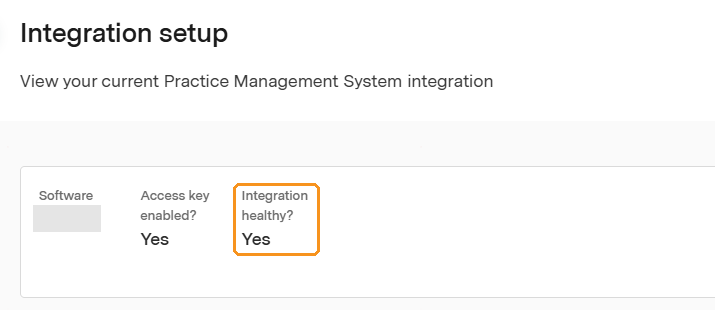
If your appointments are showing, no action is needed. If they are missing, continue to Step 2.
Step 2: Check Your Practice Admin Users
- In Practice Admin, go to Account > Roles & Users > Users.
- Check that the email address of the user who approved Xestro is still listed.
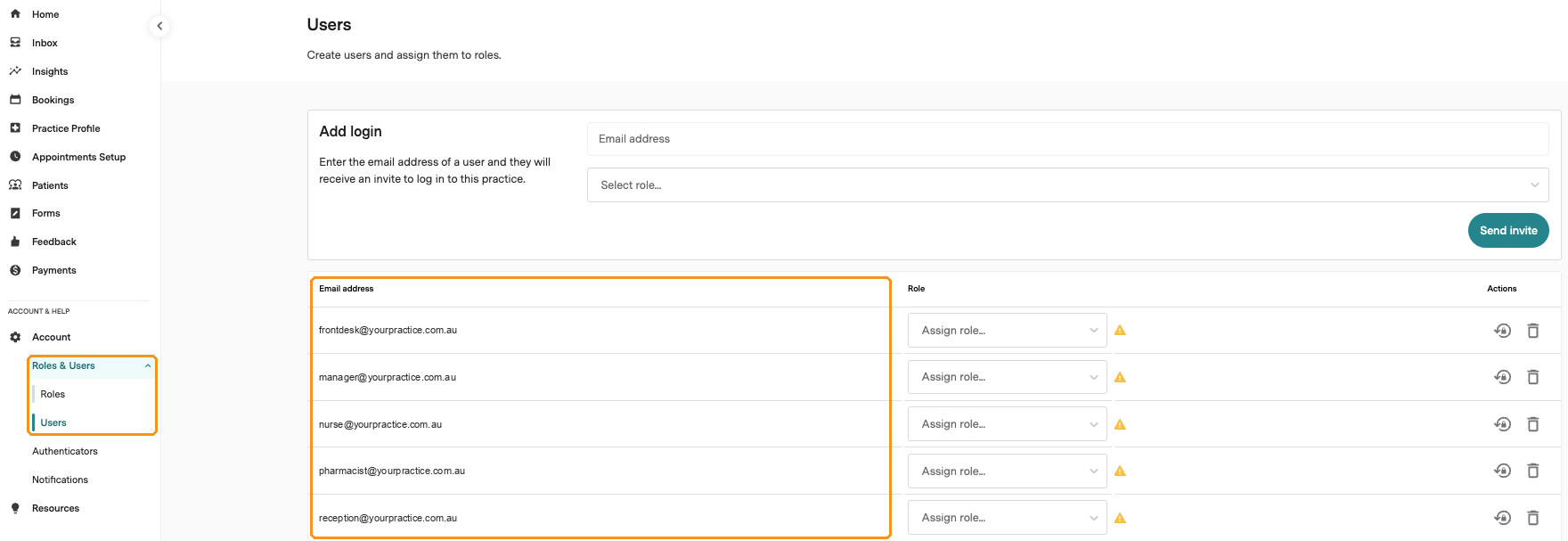
If that user was removed, or you are not sure which one was used, continue to Step 3. For help, see Roles and Users: Logins and Permissions.
Step 3: Re-authorise Xestro
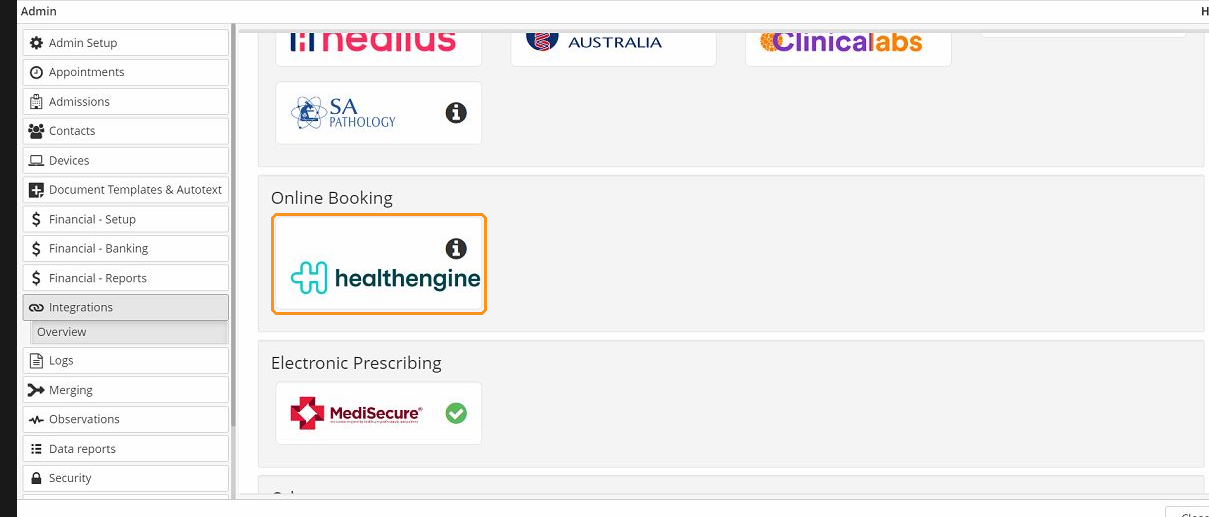
- Log in to Xestro and click the Admin tile in the bottom right-hand corner.
- Select the Integrations tab.
- Go to Online Booking > Healthengine.
- Click the 'i' icon.
- Select Unpair.
- Wait 10 minutes.
- Re-authorise the connection with your Practice Admin ID and the email address and password of a current Practice Admin user.
Step 4: Check Your Appointments Are Showing
Wait about 20 minutes, then check your Healthengine profile to confirm your appointments are showing.
If you have more than one location, check each Xestro location is linked to its own Healthengine profile.
Contact Our Support Team
If your appointments are still not showing, our Support team is happy to help. To help us resolve the issue quickly, please have the following ready:
- your practice name
- your Healthengine practice ID
- whether you have re-authorised the connection in Xestro
For ways to reach us, see Need more support? Here’s how to contact us.
You may also find this article helpful: Xestro - Healthengine's Integration: Benefits & Troubleshooting