
Verticals: GP, Dental, Allied, & Specialist
PMS: Not Applicable
Hi there, and thank you for activating your account with Healthengine - we’re so excited to have you on board!
To help you get started, this article walks you through the key features of your Healthengine Practice Admin.
How to Log In
To access your Practice Admin login page, follow the link here, or you can log in via our Healthengine homepage at https://healthengine.com.au/ and click the option displayed below:
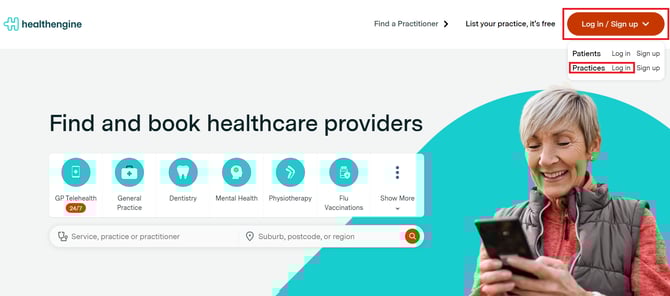
Please keep in mind that we have two separate login portals - one for patients and one for practices. If you are experiencing difficulty logging into your Practice Admin, double-check to make sure you're using the practice login portal.
If you’re struggling to log in, check out our article here - How to Log into your Practice Admin
Practice Admin Walkthrough
Your Healthengine Practice Admin is your central hub for managing everything on your account — from schedules and bookings to forms and patient communications.
Healthengine works by publishing the appointments you create in a schedule on your store’s website. From your Practice Admin, you can create schedules, manage/view your online bookings, add additional logins and view pre-screening forms along with various other features.
When you first sign in to your Practice Admin, you’ll be taken to the Home Screen page as seen below:
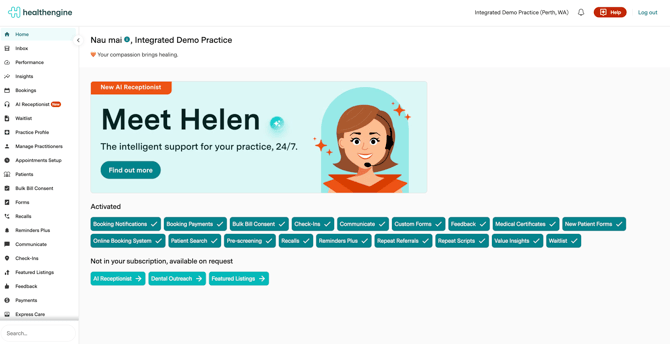
You won’t use this page a lot, but it’s a good place to check in on your activity reports.
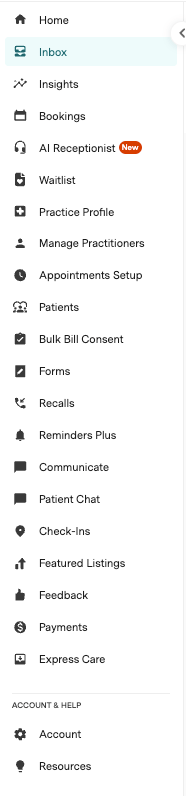
On the left-hand side of this Home Page, you’ll see a list of tabs as seen below - each tab gives you access to a new feature of Healthengine that your store can use to monitor, manage and create bookings from!
Bookings
The bookings tab of your Practice Admin will allow you to review/manage your existing bookings and re-book appointments for existing patients. To view this page, simply navigate to Bookings and then click on 'Bookings'.
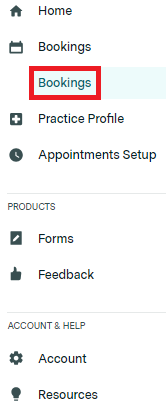
This will show you a new page where you can view your booking history that your store or customers have booked in for.
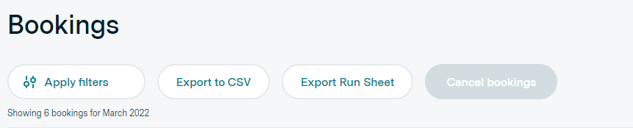
Here is a guide to help you manage your bookings: Managing Patient Bookings
Waitlist
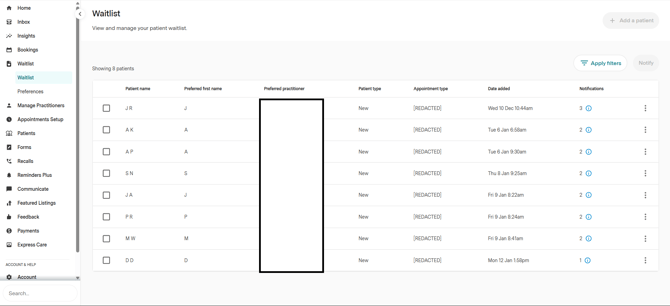
Waitlists by Healthengine give patients the ability to add themselves to an online waitlist via the same Healthengine booking form they already know and love, or give the practice the opportunity to add the patients for their favourite practitioner.
You can find more details about our Waitlist product in this section: Waitlist
Appointments Setup
The Appointments setup menu will give you access to create and manage schedules as well as decide which appointment types and services you'd like to appear on your store's website. With our 'Appointment Types' and 'Calendar' features, the control is in your hands in an easy and manageable way!
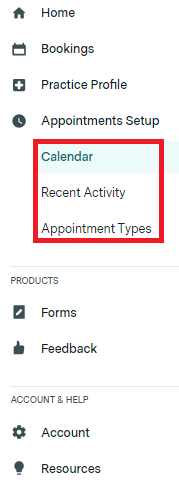
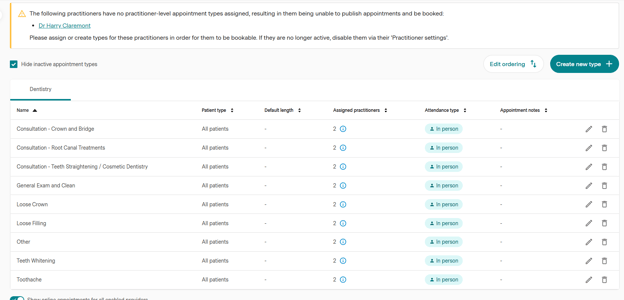
You can begin your set-up journey now by reviewing your list of services and then navigating to 'Appointments Setup' and clicking on 'Appointment Types'. From here, simply toggle on any appointment types that you would like to offer online bookings for at your store (you can toggle this off at any time).
You can find a detailed guide on how to do this in our Healthengine Help Centre article, Adding, Editing and Removing Appointment Types (Non-Integrated Practice)
Calendar is where you'll find your Healthengine Calendar - a feature that will allow you to create and manage your day-to-day bookings in the form of a schedule!
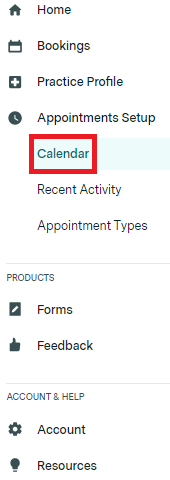
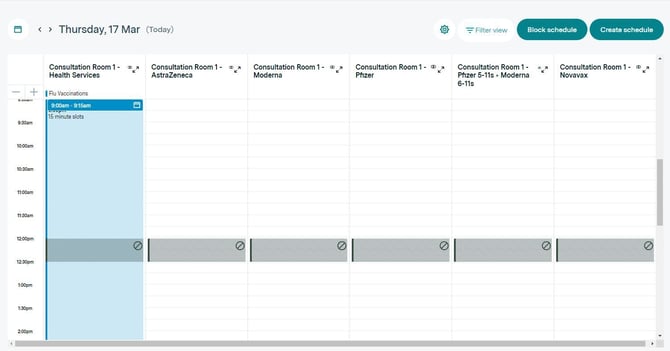
To begin creating schedules yourself, check our Healthengine Help Centre articles below that include other helpful resources such as creating Block Schedules (schedules to block out certain time frames or Public Holidays from publishing online), as well as managing existing bookings and common errors you may face when getting started!
- How to Manage Availability in Calendar
- How to Manage Bookings in Calendar
- Creating, Editing and Deleting Block Schedules
Please note: If you were part of a booking migration from your previous publishing provider, you will see these appointments already in your Bookings History and your Calendar once you have created your schedules.
New Patient Forms
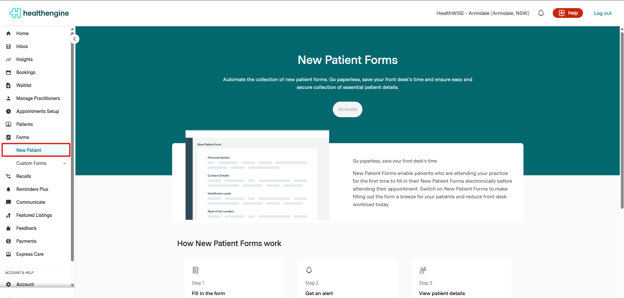
New Patient Forms is a feature that allows your patients to complete their New Patient Form online before they attend their appointment with your practice.
Using Healthengine's New Patient Forms, you can save time for both your staff and your patients by having their details already accessible in your Practice Admin.
Here is our link for the guide section for New Patient Forms.
Please note that all forms will be deleted from the Practice Admin Portal after 14 days.
Custom forms
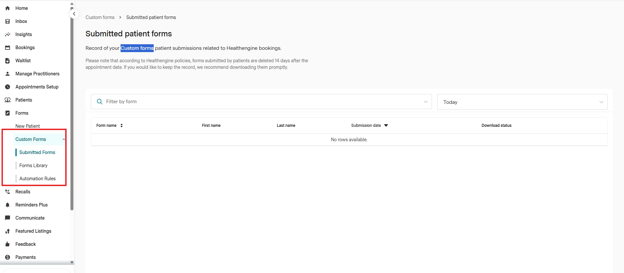
Custom Forms is a feature that allows you to create your own custom form template and set up automations for patients to receive and complete their custom Form online before they attend their appointment with your practice.
Using Healthengine's Custom Forms, you can save time for both your staff and your patients by having their details already accessible in your Practice Admin.
Please note that all forms will be deleted from the Practice Admin Portal after 14 days.
Here is our link for the guide section for Custom Forms.
Communicate
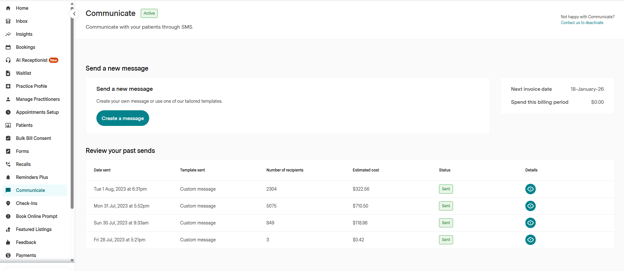
Communicate enables you to inform your patients about important updates regarding your practice via the convenience of bulk SMS sends. If you now offer telehealth appointments or want to let patients know you have flu vaccinations in stock, Communicate is the tool for you.
Let patients know of important updates about your practice via the convenience of bulk SMS messaging. Keep your patients in the loop for only $0.07 per SMS — the cost is added to your monthly invoice.
Here is our link for the guide section for Communicate.
Feedback
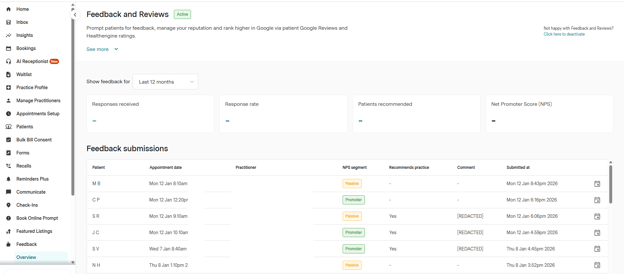
Feedback is our patient survey and feedback management system, helping you keep your finger on the pulse of your patient experience. It is a free product; all you need to do is activate Feedback to start collecting feedback and Google Reviews from your patients.
You can also offer patients the option to leave a Google review by linking your Google Business Profile account in the Feedback preferences menu.
Here is our link for the guide section for Feedback & Reviews.
Payments
Healthengine Payments is a secure, built-in payment solution for practices accepting online bookings.
Take payments for telehealth appointments and online bookings effortlessly with a secure, integrated solution that captures patient card details at the time of booking.With credit card details securely captured and verified at booking, you have the flexibility to charge upfront, post-appointment, or to request a deposit.
You can also send an SMS payment request anytime with a secure payment link for patients to make their payment - great for telehealth appointments or debt collection.
Here is our link for the guide section for Payments.
Other products
The majority of the products covered by your type of integration have been covered in this article, however you can always explore our Healthengine Product section for a full list of products.